
LifeSugar shared diary: dashboard and report for doctors and nurses
Your patient shares their LifeSugar diabetes diary with you
You see their meals with the carbs, their blood glucose before and after each meal, their insulin and their exercise, and you can export the period report as a PDF. It's the same dashboard for doctors, nurses and other healthcare professionals. Your patient gives the access and can withdraw it whenever they like.
Already been given access?
Go straight in. There's nothing to register, pay for or install.
Opens with your Google account.
No Google account? Create one with your usual emailHow to get in
Four steps. The first one isn't yours.
- 1
Your patient adds you from their app
They enter it in Settings → Personal data → Doctor's email (in Spanish, “Ajustes → Datos personales → Correo del médico”). The field is called that, but it works for any healthcare professional: if you're a nurse, your patient enters your email there. If there was already one, the phone asks for a fingerprint, face or code to change it.
- 2
That email has to be a Google account
It doesn't have to be a Gmail address. Your hospital or practice email can be linked to Google without changing your email.
Create a Google account with your usual emailGoogle asks for your name and date of birth first. Under username, choose the option to use your current email address instead.
- 3
Open the link and sign in with that exact email
The permission is tied to the address your patient entered, letter for letter. If you have several accounts open in the browser, choose the right one or open an incognito window.
- 4
Choose the patient
If more than one has given you access, they all appear on the first screen. Only those: you can't even see that the others exist.
Being added can take up to an hour
The permission and the data are updated every hour. If they've only just entered your email, wait. If it still rejects you after an hour, check that the email on their profile is yours. If the refresh were to stop, the dashboard says so in the header.
How to read the dashboard
We go through it from top to bottom, with screenshots of the dashboard itself. Each number in the image has its explanation below: what it measures, where it comes from and when it turns amber or red.
My patients
Who do I look at first?
Fixed 14- and 30-day windowsThe patients worth looking at first go at the top. The list always uses the same days (14 for blood glucose, 30 for days with entries) so patients can be compared with each other; within each patient, the period you choose rules. Only patients who have given you access appear.
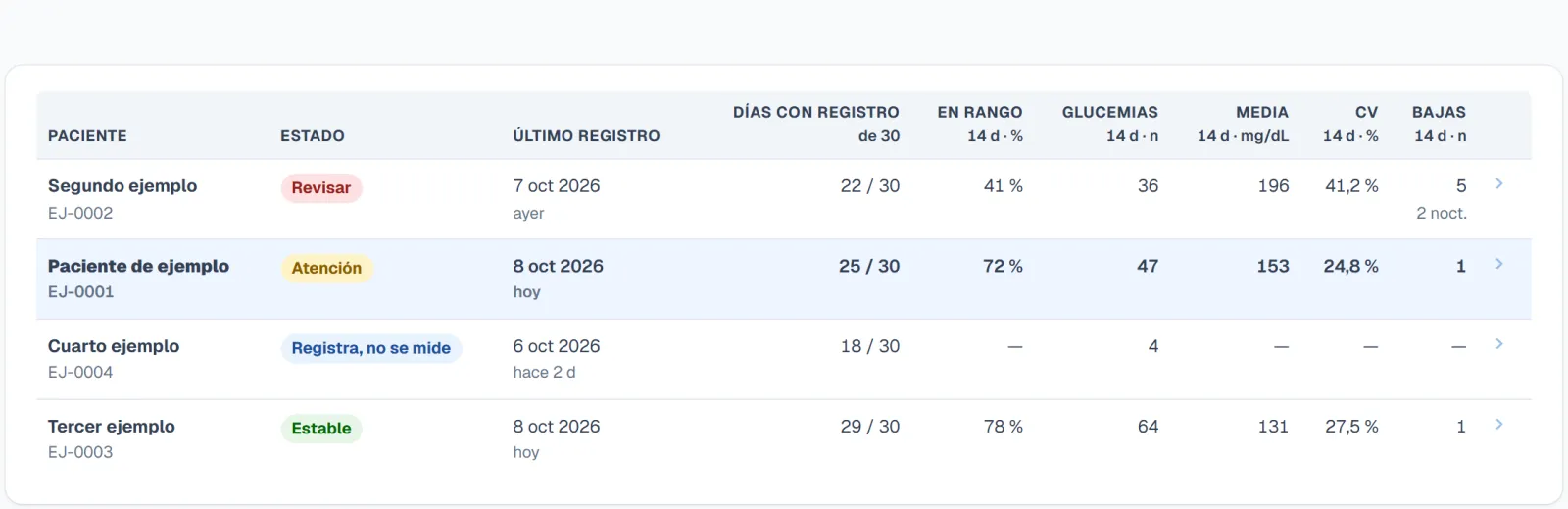
Screenshot of the dashboard with made-up data.Enlarge the screenshot (opens in a new tab) Status. It is a review order, not a diagnosis, and it looks at the last 14 days. It is evaluated in this order: No entries (“Sin registros”: nothing logged), Logs, doesn't measure (“Registra, no se mide”: fewer than 10 blood glucose readings), Review (“Revisar”: any early-morning low, or fewer than 50% of readings in range), Attention (“Atención”: any low, fewer than 70% in range or variability above 36%) and Stable (“Estable”: none of the above).
Last entry. The most recent day they logged anything and, underneath, how long ago that was. It is the date of the entry itself, not the day it was synced.
Days with entries out of the last 30. It counts days with something logged, not entries: three meals in one day are one day. It's the first thing that tells you whether the rest holds up.
In range and blood glucose readings, over 14 days. The percentage of readings between the low threshold and the upper limit of the patient's target, always alongside how many readings are behind it. With fewer than 10, a dash appears.
Mean and CV, over 14 days. The mean blood glucose in mg/dL and the coefficient of variation: how far the readings spread from that mean, in %. Above 36%, the dashboard treats it as high variability.
Lows over 14 days, with the early-morning ones (“noct.”) underneath. A low is a reading below the patient's hypoglycaemia threshold (70 mg/dL if they haven't changed it) and early morning runs from 0:00 to 5:59. A single early-morning low puts the patient in Review, as long as they have 10 or more blood glucose readings in those 14 days.
The patient's record
Whose data am I looking at, and for which days?
The period rules everything belowIt opens with the last 30 days. Change the period and the whole screen changes, except for two figures with their own window: the estimated HbA1c (always 90 days) and the total daily insulin dose (always 30).
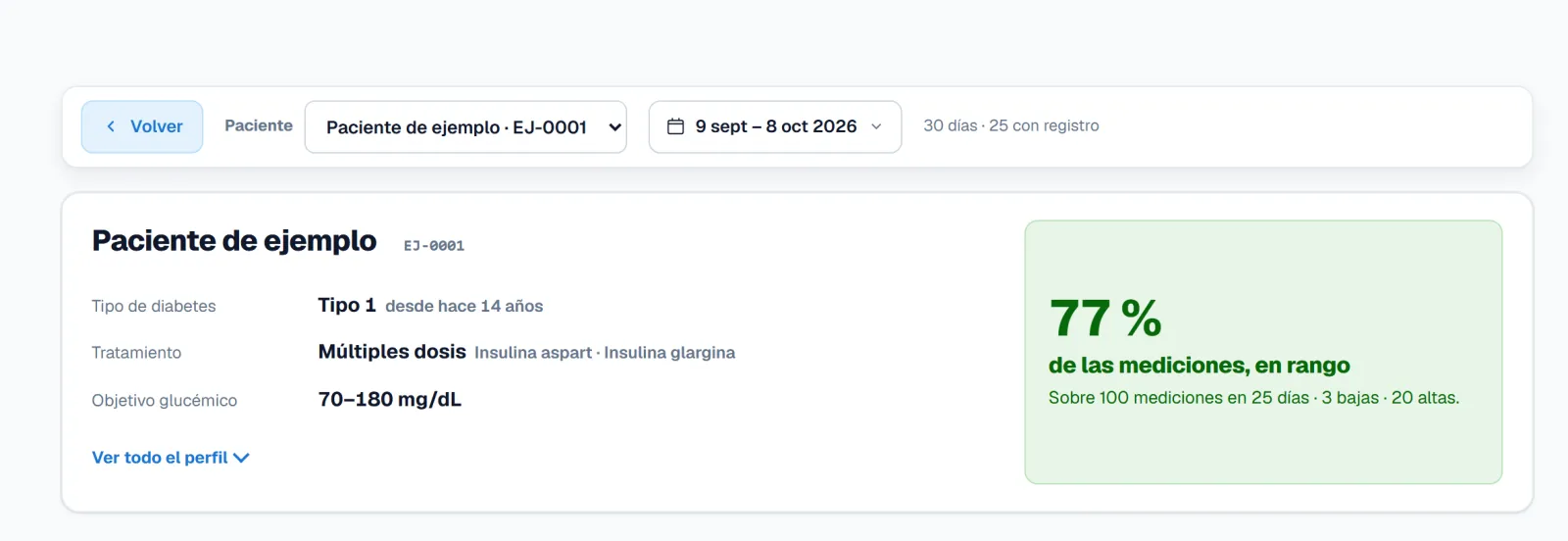
Screenshot of the dashboard with made-up data.Enlarge the screenshot (opens in a new tab) Back and patient selector. You go back to the list or jump to another patient without going through it. Only those who have given you access appear.
The period. Last 7, 14, 30 or 90 days, this month, last month, the whole history or specific dates. Next to it, how many days the chosen range has and how many of them have entries.
Type, treatment and blood glucose target. The patient sets them in their app profile. The target is theirs and defines what is low, in range and high in every chart. If it says “default” (“por defecto”), they haven't set it and the dashboard uses 70–180 mg/dL.
The summary in one sentence. The percentage of readings in range for the period, with how many are behind it and how many lows and highs. Green from 70%, amber between 50 and 70%, and red below 50% or with any early-morning low (the headline then says how many there were). If variability goes above 36%, it adds that. With fewer than 10 readings it gives no percentage. It describes; it doesn't set a regimen.
View full profile: age, weight and BMI, prescribed ratio, action time of the rapid-acting insulin (the time the patient has configured) and whether they log carbs in grams or in portions. Anything not in the profile shows as “No data” (“Sin dato”).
Adherence and data quality
Can I trust this data?
Always start hereAn average over three days isn't an average: each figure says how many days are behind it. A missing day isn't a day at zero, it's a day without entries, which is why empty days are drawn too.
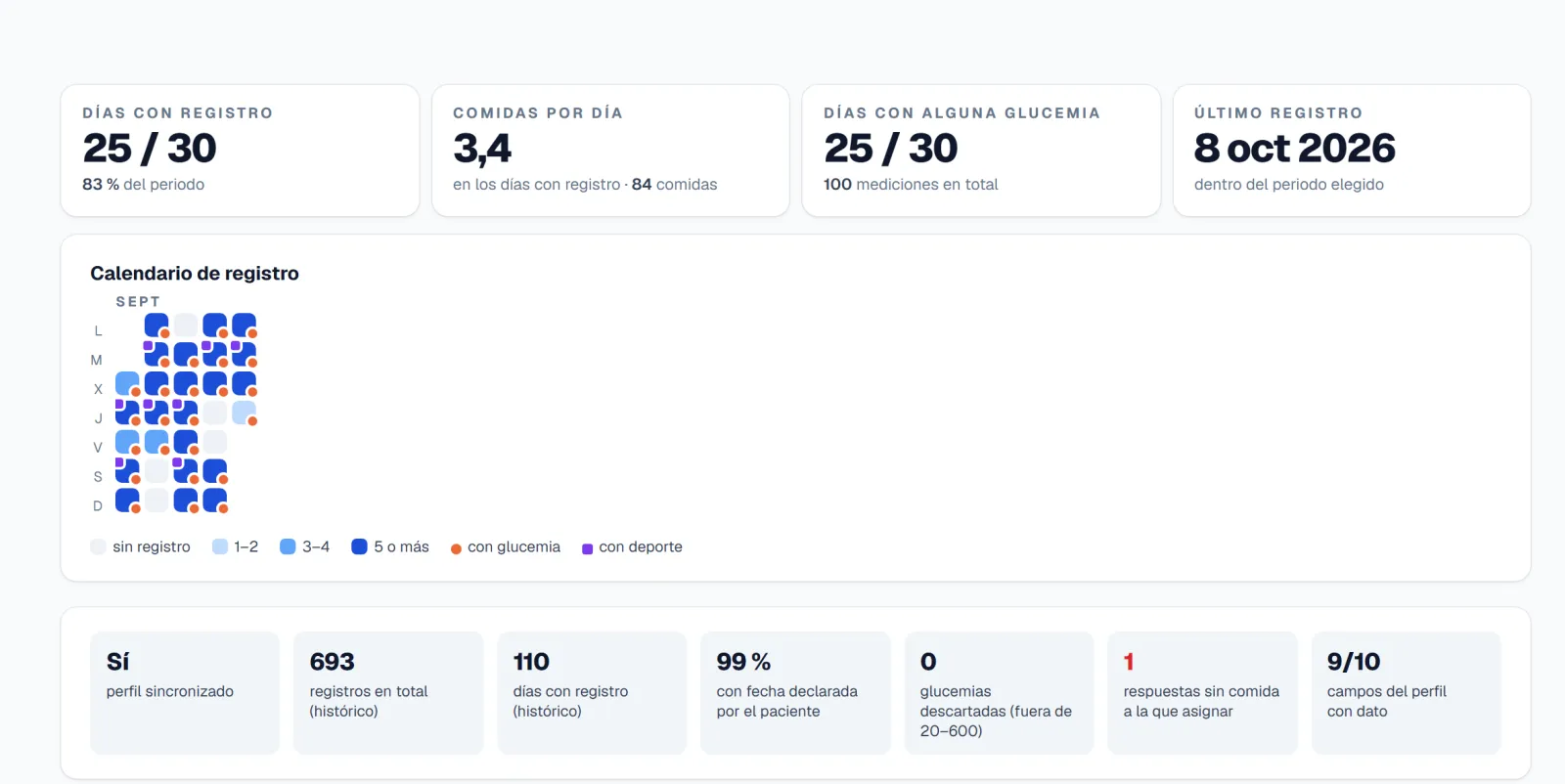
Screenshot of the dashboard with made-up data.Enlarge the screenshot (opens in a new tab) Days with entries out of the days in the period (25 of 30 in the example). A day counts if they logged anything. If it doesn't reach half, the figure turns amber.
Meals per day. The average number of meals on days with entries, not on every day of the period. Underneath, how many meals there are in total.
Days with any blood glucose, with how many readings they add up to. It says whether they measure regularly or only now and then.
Last entry within the chosen period. If there is none in that period, it says so.
The calendar: one square per day, darker the more entries it has (1–2, 3–4, 5 or more) and almost white if nothing was logged. A gap of several days shows when they stopped logging: that's where the conversation starts. The orange dot is a day with some blood glucose, and the purple one a day with exercise. Hover over a day to see what they logged.
Profile and totals. Whether the profile is synced (if not, there is only the diary) and how many entries and days with entries they have in the whole history, not just this period.
Date declared by the patient. The percentage of entries with the date and time they entered themselves; the rest carry the sync time and may be shifted. Below 95%, it turns red.
Discarded blood glucose readings and answers without a meal. Discarded ones are values outside 20–600 mg/dL, impossible and almost always a typing error: they go into no calculation. Answers without a meal are later readings that couldn't be matched to a meal (they are matched to the last one in the previous 6 hours). If either goes above zero, it turns red.
Profile fields filled in. How many profile items are filled in (type of diabetes, treatment, weight, prescribed ratio, target…). Without them, figures such as units per kilo or the ratio deviation are missing. Below 4, it turns red.
Blood glucose
How is their blood glucose?
Not a continuous sensorThese are finger-prick readings that the patient logs. You'll see “readings in range”, never “time in range”. And they measure more often when they suspect it is off: the extremes appear more than they should. In the charts, red is low, green in range and orange high.
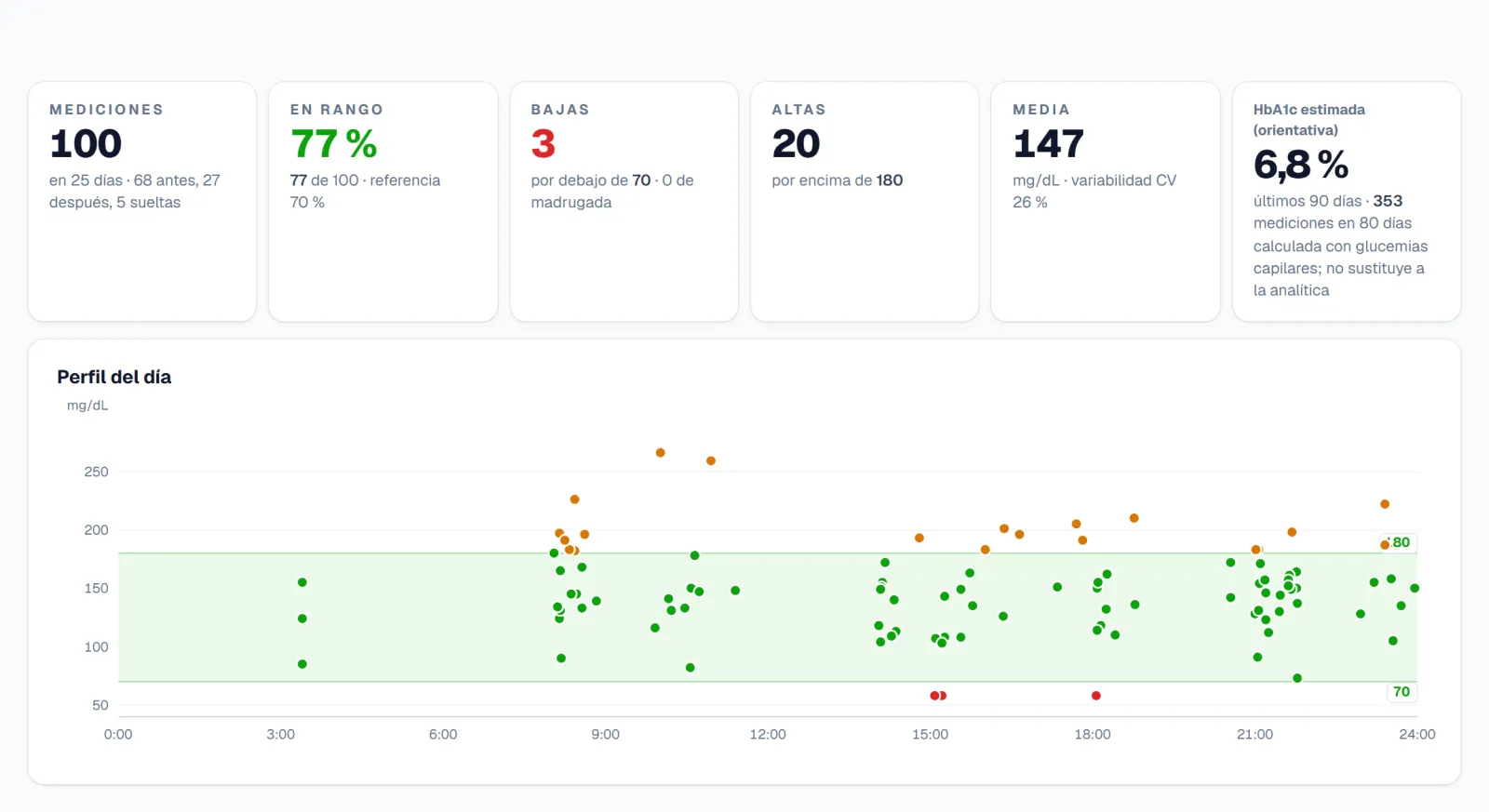
Screenshot of the dashboard with made-up data.Enlarge the screenshot (opens in a new tab) Readings in the period and over how many days. They split into those taken before eating, those taken after (answers to the reminder) and standalone ones, which aren't tied to a meal.
Readings in range. The percentage between the low threshold and the upper limit of the patient's target, with how many that is and the 70% reference. Green from 70%, amber between 50 and 70%, red below. With fewer than 10 readings there is no percentage: it says how many there are.
Lows. Below the patient's hypoglycaemia threshold (70 mg/dL by default), with the early-morning ones (0:00–5:59) underneath. With just one, the figure turns red.
Highs. Above the upper limit of their target (180 mg/dL by default). It turns amber if they are more than 30% of readings.
Mean and variability. The mean of all readings, in mg/dL, and the CV: the standard deviation divided by the mean, in %. The higher the CV, the more the readings spread out.
Estimated HbA1c (approximate). It is the GMI: 3.31 + 0.02392 × the mean blood glucose of the last 90 days, whatever the period, and it only appears with 30 readings on 14 different days. The formula was validated with a continuous sensor: with capillary blood glucose it is a guide and does not replace a lab test.
The green band is this patient's target, with both limits written out. Each point is a reading at the time it was taken; lows in red and highs in orange.
Look for where the points cluster, not the single point. A high cloud first thing in the morning and another in range in the afternoon point to a time of day, not to poor control overall. Hover over a point to see the time and whether it was before or after eating.
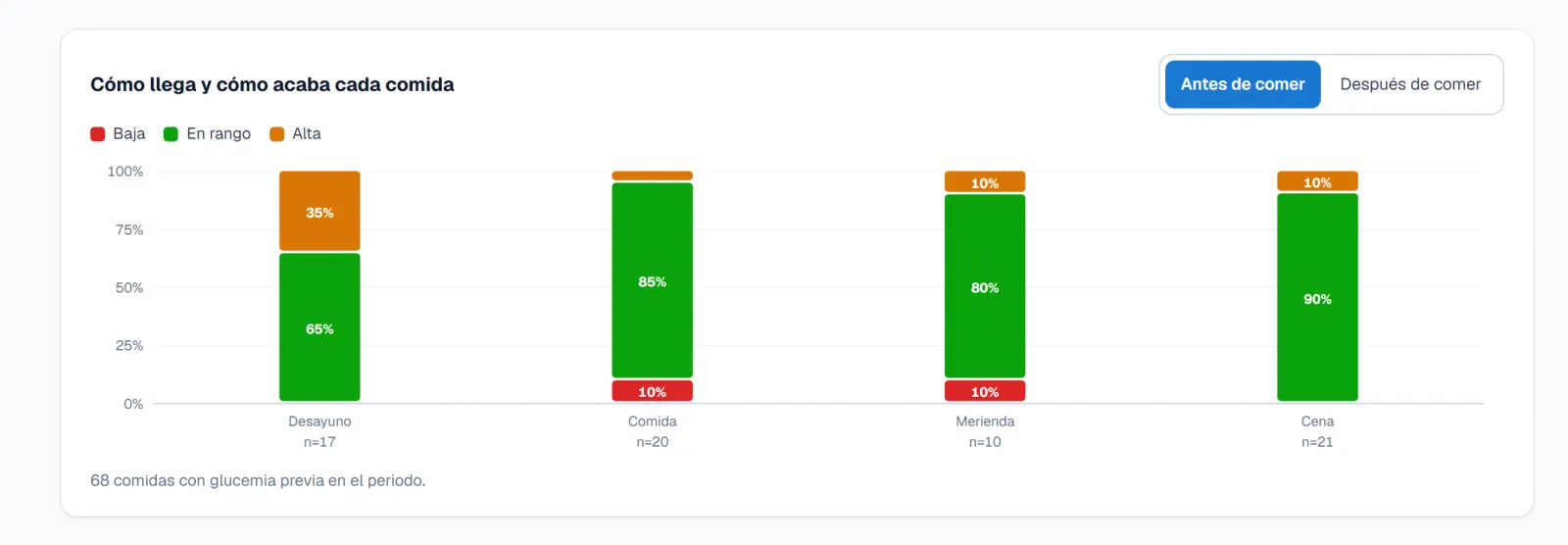
Screenshot of the dashboard with made-up data.Enlarge the screenshot (opens in a new tab) Before or after eating. Before: the band of the blood glucose the meal started with, which usually comes from the previous meal or from the basal insulin. After: the band of the later reading, only for meals whose reminder they answered; if it is missing, that tells you about the reminder, not about control.
One column per meal of the day, split into low (red), in range (green) and high (orange), with the percentage of each. The meal comes from the time it was logged: breakfast from 6:00 to 10:59, mid-morning from 11:00 to 12:59, lunch from 13:00 to 16:59, afternoon snack from 17:00 to 19:59 and dinner from 20:00 to 23:59.
How many meals are behind it. Under each column goes its n and in the footer, the total. With fewer than five, the n turns red and that column isn't interpreted.
Food and blood glucose
How does what they eat affect them?
What was on the plateWhat a glucose meter doesn't see. The grams come from a photo or from what they chose in the database: the latter is more reliable, and in both cases it is an estimate that serves to compare days, not to make the grams add up. If they log in portions, the app converts them to grams before they get here. Further down there is a table with the foods they repeat most and what each portion provides; their sugars are a known minimum, never a total.
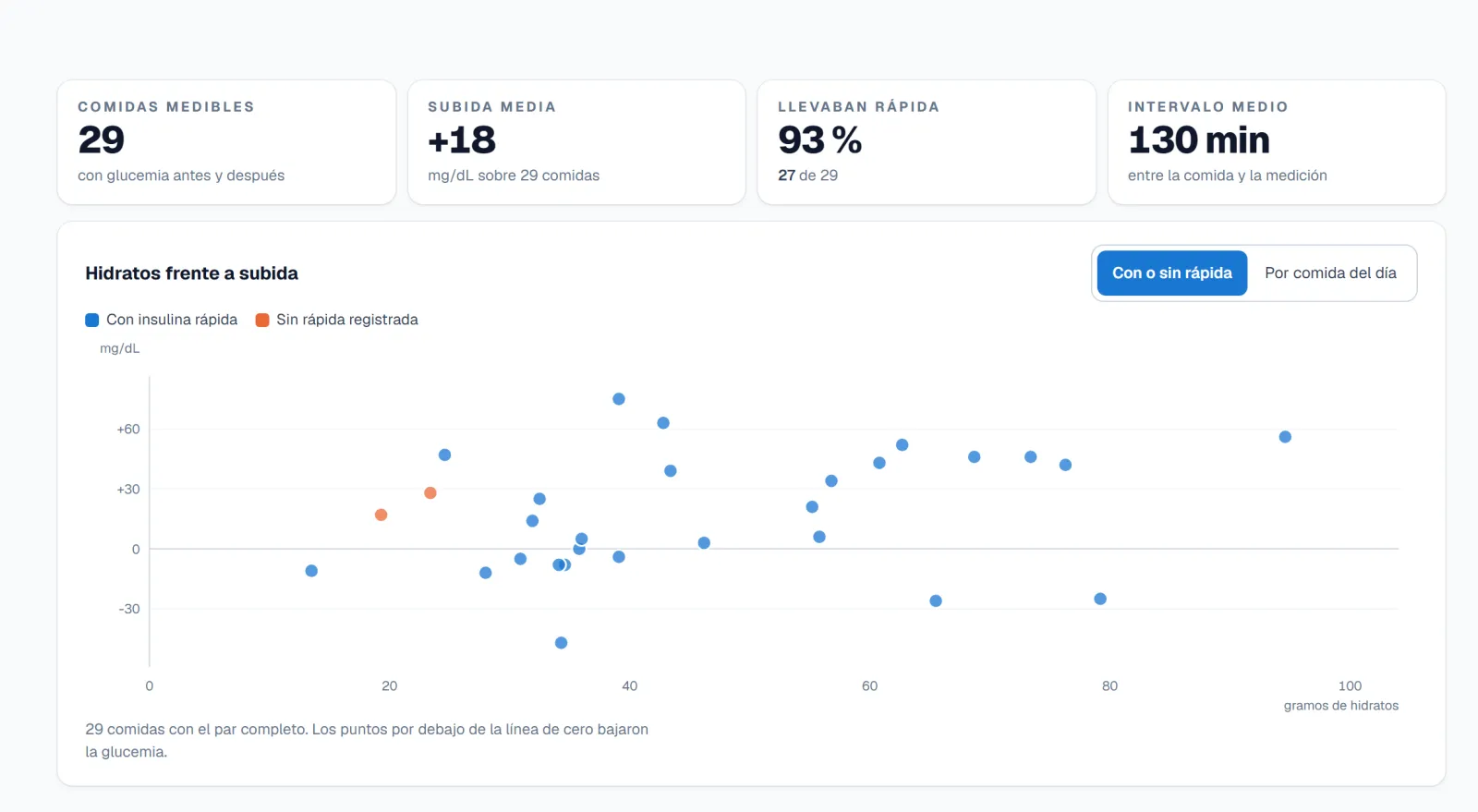
Screenshot of the dashboard with made-up data.Enlarge the screenshot (opens in a new tab) Measurable meals: only those with blood glucose before and after. If the patient didn't answer the reminder, that meal doesn't appear here, although its carbs do count towards the day.
Mean rise: the average of “blood glucose after minus blood glucose before” in those meals, in mg/dL. A +18 means the later reading was, on average, 18 mg/dL higher than the earlier one. It is what happened, with or without rapid-acting insulin: it doesn't isolate the effect of the meal.
Had rapid-acting insulin: what share of those meals have rapid-acting insulin logged (27 of 29). It tells you whether the cloud mixes meals with and without insulin.
Mean interval: the minutes that pass, on average, between the meal and the later reading. It isn't fixed: the app schedules the reminder according to the action time of the rapid-acting insulin and each patient answers when they can.
With or without rapid-acting insulin, or by meal of the day. It changes what the colour of the points separates: blue and orange depending on whether they had rapid-acting insulin or not, or one colour per meal of the day.
One point per meal: grams horizontally, how much the blood glucose changed vertically. If the cloud rises to the right, the coverage falls short at big meals. If it is flat and high, the problem isn't how much they eat. If it is very scattered, there is something more than carbs: the timing, the type of food or the time between the insulin and the meal. Hover over a point to see the minutes, the blood glucose before and after, the food and the insulin.
Below zero, the blood glucose fell. The footer says how many meals have the full pair. The interval isn't fixed: a rise at 45 minutes and another at 3 hours can't be compared.
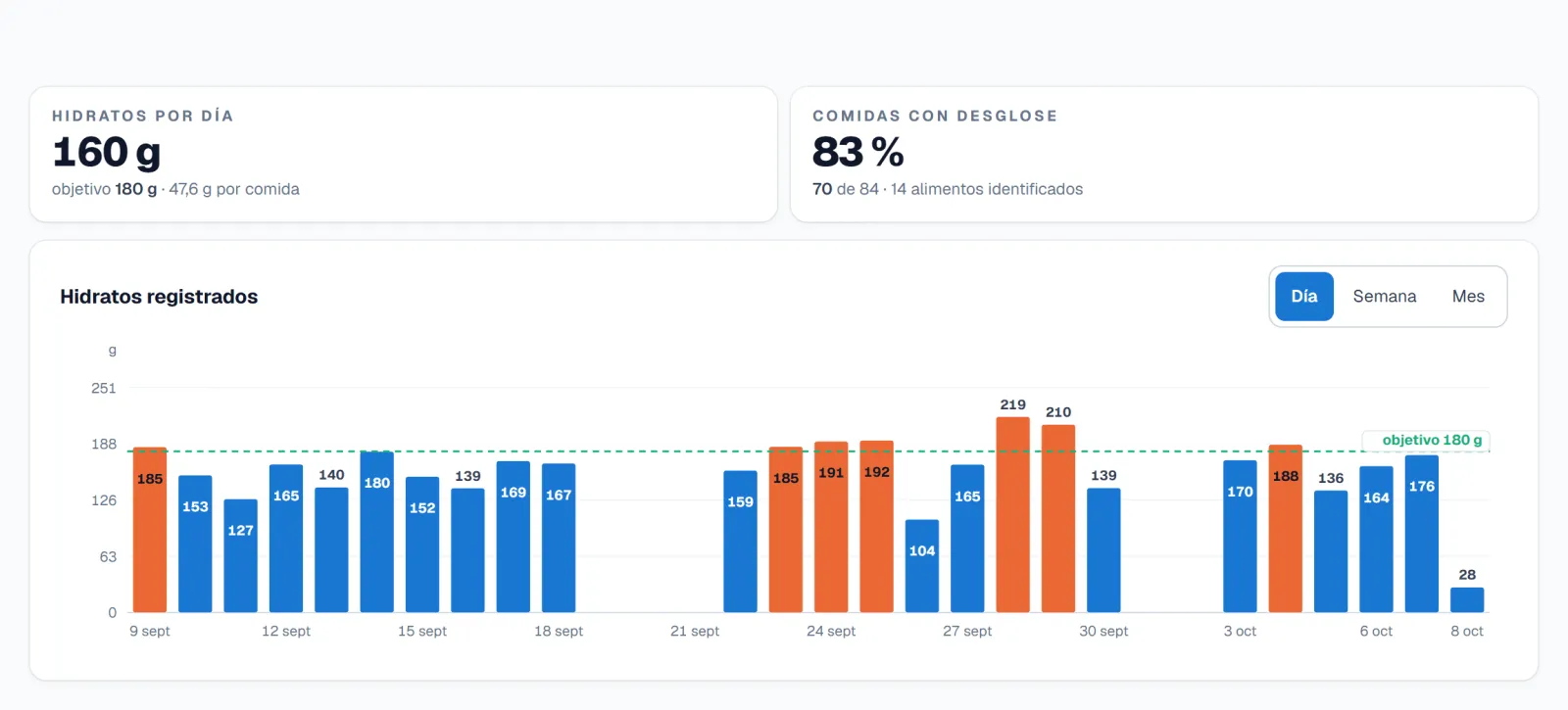
Screenshot of the dashboard with made-up data.Enlarge the screenshot (opens in a new tab) Carbs per day. The average carbs logged per day with entries and the average grams per meal. Underneath, the patient's daily target: if they go over it by more than 15%, the figure turns amber.
Meals with breakdown: how many include the identified foods, whether by photo or by choosing them in the database, out of the total meals, and how many foods that adds up to.
Day, week or month. Each chart has its own selector. In week and month, each bar is the daily average.
The dashed green line is the daily carb target, if the patient has one, and the orange bars are the days that exceed it. These are carbs logged, not eaten: if they log little, the bar drops without them having eaten less.
Insulin
What do they take?
A day without a bar is not a day without insulinIt is what they log, and it may not be everything. Read it alongside adherence: if the basal disappears, they have almost always stopped logging it. With a pen, basal is logged separately; with a pump it is never logged and may appear empty.
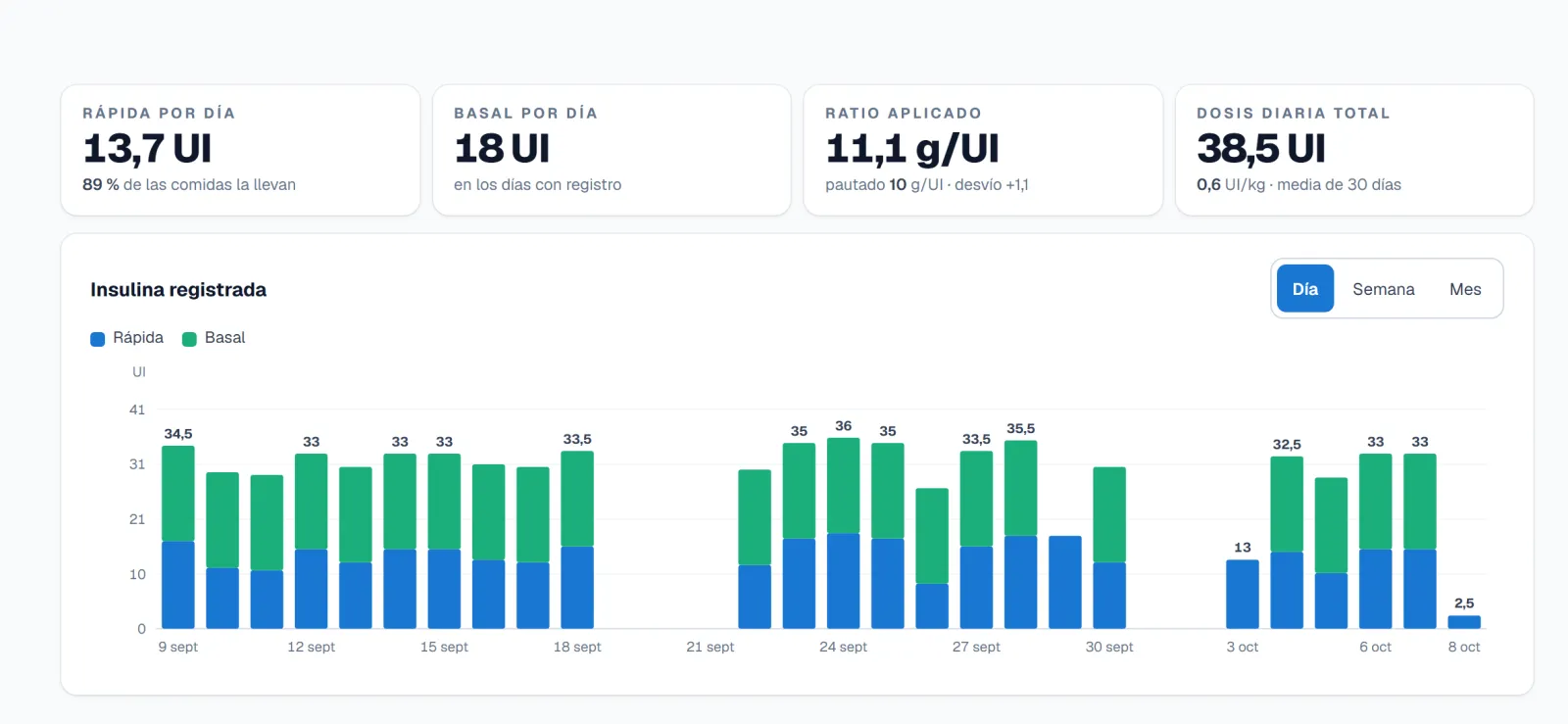
Screenshot of the dashboard with made-up data.Enlarge the screenshot (opens in a new tab) Rapid-acting per day. The average units of rapid-acting insulin on days with entries and the percentage of meals that include it. If there is none, it says “no rapid-acting logged” (“no registra rápida”).
Basal per day. The average units of basal on days with entries. With a pump it isn't logged and the dashboard says so; if they don't use a pump and it appears empty, they aren't logging it.
Applied ratio against prescribed. Grams divided by units at meals with rapid-acting insulin; corrections are not included, because they don't cover carbs. The deviation is applied minus prescribed, and if they differ by more than 2 g/U, it turns amber. It is what they did, not what they should do.
Total daily dose. Rapid-acting plus basal, as an average per day with entries, and the units per kilo if the profile has the weight. It always looks at the last 30 days, whatever the period.
Rapid-acting and basal, stacked. Each bar adds up both and the figure above is the day's total. A day without a bar is a day without a log, not a day without insulin: compare it with the calendar.
Day, week or month, without touching the other charts. In week and month, each bar is the daily average.
Physical activity
Do they move?
What they log, not a watchIt comes from the Exercise section of each entry: type, minutes and intensity. It is not cross-referenced with blood glucose here. To see how it was before and after a session, hover over that day in the calendar or look it up in the history. An entry with an impossible duration (0 minutes or more than 10 hours) doesn't count, and the dashboard flags it below the chart.
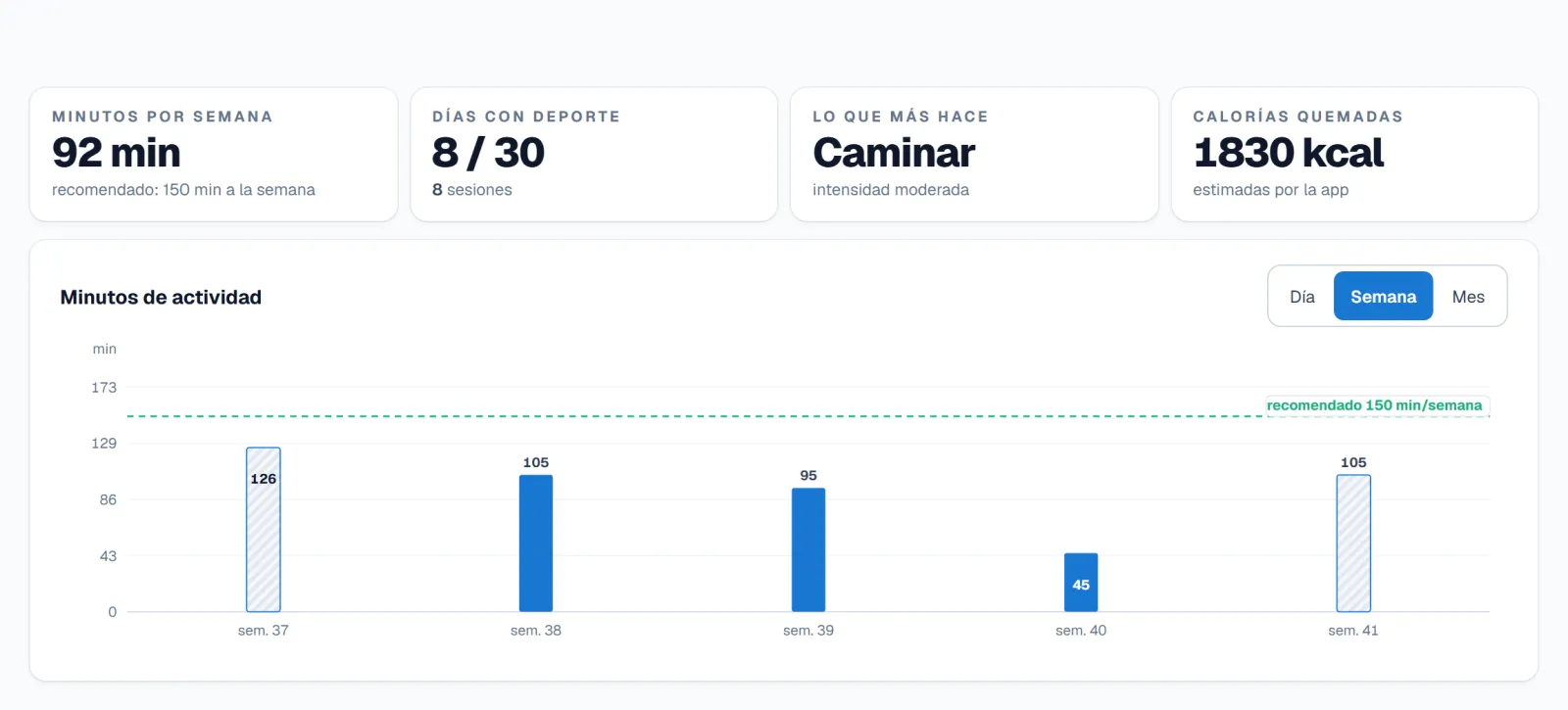
Screenshot of the dashboard with made-up data.Enlarge the screenshot (opens in a new tab) Minutes per week. The total minutes in the period spread over the weeks it lasts, with the 150 reference. If the period is shorter than 7 days it isn't scaled: it shows the minutes there are.
Days with exercise out of the days in the period, and how many sessions. A session is each time they logged exercise: walking and running logged together count as one.
What they do most. The activity they spent the most minutes on in the period and their most usual intensity (light, moderate or intense), also counted by minutes.
Calories burned. The app estimates them from the duration and the intensity, or the patient enters them. They are for comparing weeks, not as a measurement.
Day, week or month. Each chart has its own selector, and this one opens on week.
The 150-minute line is the weekly recommendation from the ADA and the WHO for adults, at moderate intensity: a reference, not a target agreed with this patient.
The hatched bars are weeks or months cut off by the period: only some of their days fall inside it. They are scaled to minutes per 7 days so they can be compared with the line.
History
Can I go through it with the patient in the room?
CSV and PDF take everything that is loadedWhat they ate, how they arrived, what they took and how it ended, row by row. The date and time are those the patient declared, in their time zone. If the period goes over 500 entries, the dashboard warns you before exporting: narrow the dates.
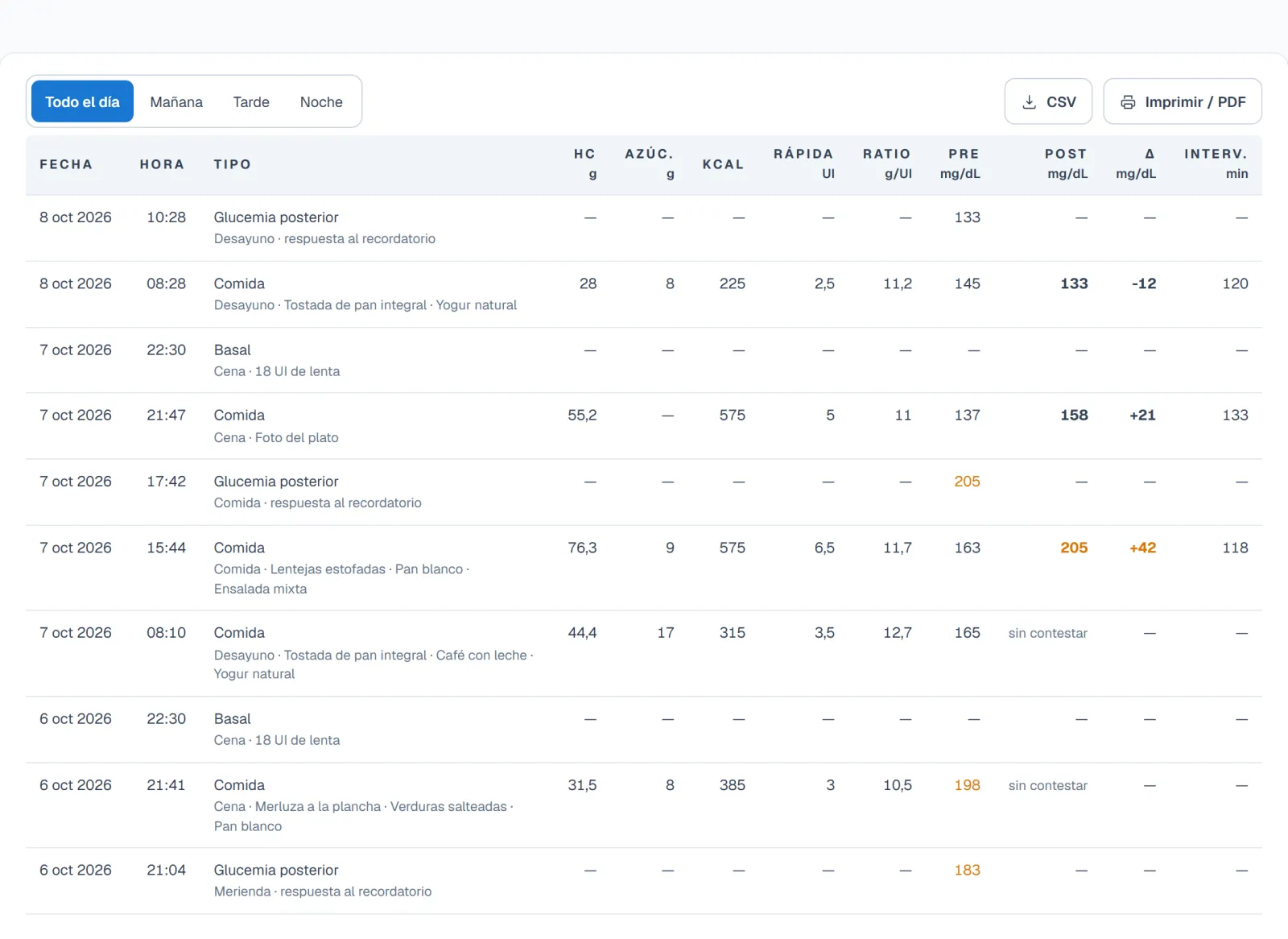
Screenshot of the dashboard with made-up data.Enlarge the screenshot (opens in a new tab) All day, morning, afternoon or night. Morning runs from 6:00 to 13:59, afternoon from 14:00 to 20:59 and night from 21:00 to 5:59. “See more” (“Ver más”) only expands what you see on screen.
CSV and Print / PDF (“Imprimir / PDF”) take all the entries in the period, up to the 500 most recent, not just the rows on screen. The CSV opens in Excel and the PDF is the whole report.
Type and detail. Meal, correction, blood glucose, later blood glucose, basal or exercise and, underneath, the part of the day and what was on the plate (by photo or chosen in the database). A “later blood glucose” is the answer to the reminder: it appears on its own and, when paired, on the meal it belongs to.
Carbs, sugars and kcal for that meal: an estimate from the photo or the food database, in grams and kilocalories. Sugars only appear if the food has them.
Rapid-acting, ratio and Pre. The units of rapid-acting insulin for that meal; the ratio, grams divided by units, the observed one and not the prescribed one (corrections don't have one); and Pre, the blood glucose they arrived with. On a standalone reading, Pre is the reading itself.
Post, Δ and Interv. Post is the paired later blood glucose; Δ is Post minus Pre; and Interv. is the real minutes between the two, not a fixed value at two hours. Highs in orange; lows in red.
A gap in Post says why: unanswered (the reminder was due and there was no answer), pending (not due yet) or not measured (that meal has no reminder).
It is support for the appointment, not a treatment guide: the dashboard doesn't suggest regimens or treatment changes, doesn't calculate doses and doesn't judge any figure. The interpretation and the decision are yours.
Frequently asked questions about the dashboard for doctors and nurses
Tell us what the dashboard is missing
If a piece of data is missing or something is hard to read, tell us.
You'll be writing to whoever builds the dashboard, not a support inbox.
Medical notice
LifeSugar is not a medical device. What you see is what the patient logged, with the app's estimates, and it may contain errors. It does not replace a laboratory test or clinical judgement, and in particular the carb estimates must not be used to calculate insulin doses.